You can protect your home computer by keeping your software updated, using strong passwords with two-factor authentication, installing reputable antivirus software, backing up your data regularly, and avoiding suspicious links and downloads. These five habits block the vast majority of everyday cyber threats.
That is the short answer. The longer answer is worth your time, because most people only fix their security after something goes wrong. I have spent years helping friends, family and clients recover from ransomware, stolen accounts and wiped hard drives, and almost every incident was preventable.
Let us walk through exactly what works in 2026.
Why Home Computer Security Matters More Than Ever
Your home computer is no longer just a machine for browsing. It holds your banking details, tax records, family photos, saved passwords and work files. Cybercriminals know this, which is why phishing attacks, malware and identity theft now target ordinary households, not just businesses.
The good news? You do not need to be a tech expert. A handful of simple, consistent habits will make your computer a far harder target.
1. Keep Your Operating System and Software Updated
Software updates are your first line of defence. Most malware exploits known security flaws that have already been patched. If you delay updates, you leave the door open.
Here is what I recommend:
- Turn on automatic updates for Windows or macOS
- Update your browser, plugins and apps as soon as prompted
- Remove old software you no longer use
- Restart your computer regularly so updates actually install
In my experience, the single most common cause of infected home computers is an operating system that has not been updated in months. It takes two minutes to fix.
2. Use Strong Passwords and Two-Factor Authentication
Weak or reused passwords are the easiest way into your accounts. If one website is breached, criminals will try that same password everywhere else. This technique, called credential stuffing, is remarkably effective.
Follow these rules:
- Use a unique password for every account
- Make passwords at least 12 characters long
- Use a password manager to generate and store them
- Enable two-factor authentication (2FA) on email, banking and social media
Two-factor authentication is the closest thing to a security silver bullet. Even if someone steals your password, they cannot log in without the second code from your phone or authenticator app.
3. Install Reputable Antivirus and Firewall Protection
Modern operating systems include solid built-in protection. Windows Defender, for example, is genuinely good these days. However, you still need to make sure it is switched on and running scans.
Quick checklist:
- Confirm your antivirus is active and updating its definitions
- Keep your firewall enabled at all times
- Run a full system scan at least once a month
- Be cautious with free antivirus tools from unknown developers
A word of balance here. No antivirus catches everything. It is a safety net, not a substitute for careful behaviour online.
4. Back Up Your Data Regularly
Ask yourself a simple question. If your computer died right now, what would you lose? If the answer makes you nervous, you need backups today.
The industry standard is the 3-2-1 backup rule:
- Keep 3 copies of your important data
- Store them on 2 different types of media
- Keep 1 copy offsite, such as in cloud storage
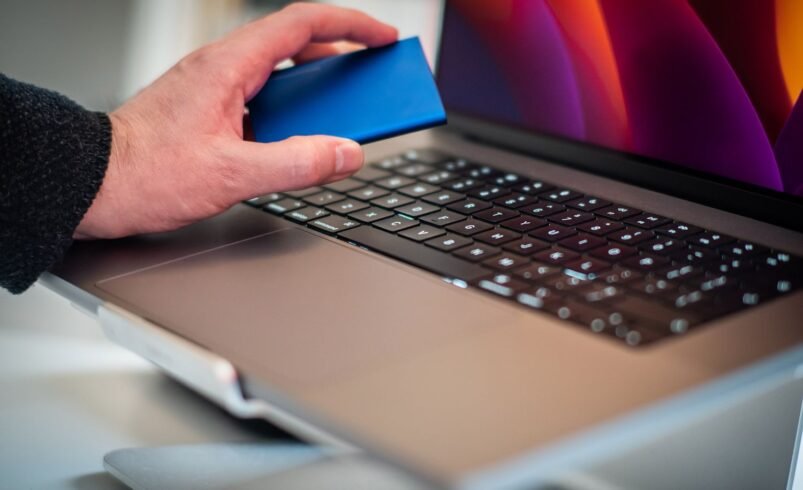
Ransomware becomes almost powerless when you have clean backups. Instead of paying criminals, you simply restore your files. I have seen this save people thousands of pounds and countless hours of stress.
5. Browse and Download Safely
Most infections do not break in. They are invited in. Phishing emails, fake download buttons and malicious attachments rely on one careless click.
Safe browsing habits include:
- Never opening attachments from unknown senders
- Checking the sender’s email address, not just the display name
- Downloading software only from official websites or app stores
- Hovering over links to preview the destination before clicking
- Being sceptical of urgent messages demanding immediate action
If an email claims your bank account is locked, do not click the link. Open your browser and log in to your bank directly. This one habit alone stops most phishing attempts.
6. Secure Your Home Network
Your computer is only as safe as the network it sits on. An unsecured Wi-Fi router lets attackers straight into your digital home.
Take these steps:
- Change your router’s default admin password
- Use WPA3 encryption, or WPA2 at minimum
- Keep your router’s firmware updated
- Set up a guest network for visitors and smart devices
Smart devices such as cameras and speakers are common weak points, so keeping them on a separate guest network limits the damage if one is compromised.
Quick Summary: How to Protect Your Home Computer
- Enable automatic software updates
- Use unique passwords and turn on 2FA
- Keep antivirus and firewall protection active
- Follow the 3-2-1 backup rule
- Think before you click links or attachments
- Secure your Wi-Fi router and home network
Final Thoughts
So, how can you protect your home computer? Not with one expensive product, but with consistent, simple habits. Updates, strong passwords, antivirus, backups and cautious clicking form a layered defence that stops the overwhelming majority of threats.
Start with the weakest area first. If you have no backups, sort that today. If you reuse passwords, install a password manager this week. Security is not a one-off task. It is a routine, and once Robotic Arms it becomes a habit, it barely takes any effort at all.
Frequently Asked Questions
1.What is the best way to protect your home computer?
The best way to protect your home computer is layered security: automatic updates, unique passwords with two-factor authentication, active antivirus software, regular backups and careful browsing habits. No single tool is enough on its own.
2.Is free antivirus software good enough for home use?
Built-in protection such as Windows Defender is sufficient for most home users, provided it stays enabled and updated. Avoid unknown free antivirus tools, as some are ineffective or even malicious.
3.How often should I back up my home computer?
Back up important files at least once a week, or use automatic cloud backup for continuous protection. Follow the 3-2-1 rule: three copies, two media types, one stored offsite.
4.Can a firewall alone protect my computer?
No. A firewall blocks unauthorised network traffic, but it cannot stop phishing emails, malicious downloads or weak passwords. It works best combined with antivirus, updates and safe browsing.
5.How do I know if my home computer has been hacked?
Warning signs include unexpected slowdowns, unfamiliar programs, disabled antivirus, strange pop-ups, password reset emails you did not request and unusual account activity. If you notice these, disconnect from the internet and run a full antivirus scan.