How to Run AI Models on a Raspberry Pi: A Beginner Friendly Guide
- November 9, 2026
- 0
How to Run AI Models on a Raspberry Pi: A Beginner Friendly Guide This guide shows you how to run AI models on a Raspberry Pi with no

How to Run AI Models on a Raspberry Pi: A Beginner Friendly Guide This guide shows you how to run AI models on a Raspberry Pi with no
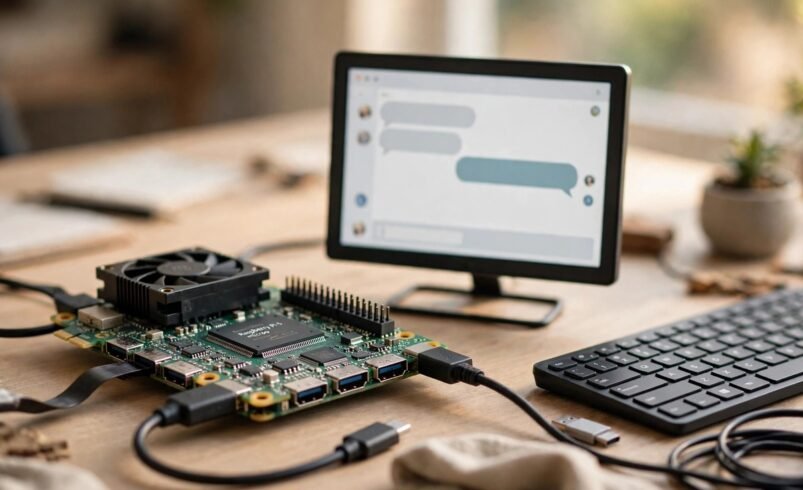
This guide shows you how to run AI models on a Raspberry Pi with no graphics card and no cloud subscription. A Raspberry Pi 5 with 8GB of RAM runs small chat models, image classifiers and voice tools entirely on the device, so your prompts stay on your own hardware. You will learn which Pi to buy, how to set it up, and three practical ways to run your first model, plus what speed to expect and what usually goes wrong.
Be clear about the trade-off. A Pi runs small open models well, not frontier models like GPT-4 or Claude. It fits a private home assistant, an offline voice helper, a camera that recognises objects, or a cheap way to learn local AI. If you need the smartest model available, use a cloud API instead.
Yes, it can run small AI models, and the Pi 5 is the first Pi that does it well enough for everyday experiments. The Pi 5 uses a Broadcom BCM2712 quad-core Arm Cortex-A76 processor running at 2.4GHz, and Google’s own testing puts its CPU at about 153.6 GFLOPS in FP32 and up to about 2.0 TOPS in INT8. That is modest next to a desktop graphics card, but it is enough for models with 1 to 3 billion parameters, for image classification, and for object detection.
The reason small models work on a Pi is quantization. A model trained with 32-bit numbers is converted so its weights use 8-bit integers instead. That cuts the model to roughly a quarter of its size and lets the Pi’s Arm cores use fast integer maths. The cost is a small loss of accuracy, which rarely matters for home projects. This is the basic idea behind what is edge AI: the work happens on your device, not in a data centre.
Buy a Raspberry Pi 5 with 8GB of RAM if you are starting fresh. It is the only board that runs 3-billion-parameter chat models at a usable speed while leaving room for the operating system and anything else you run. The 4GB Pi 5 works for 1-billion-parameter models and for vision work. A Pi 4 with 8GB can run the same small models, but it is noticeably slower and it lacks the Pi 5’s PCIe port for fast NVMe storage.
| Board | What it runs well | Verdict |
|---|---|---|
| Raspberry Pi 5, 8GB | Chat models up to 3B, vision, voice, small agents | Best choice, buy this one |
| Raspberry Pi 5, 4GB | Chat models up to 1B, vision and classification | Good budget start |
| Raspberry Pi 5, 16GB | Same models with more headroom for other software | Only if you run a lot alongside the model |
| Raspberry Pi 4, 8GB | Small models, slowly | Usable if you already own one |
| Raspberry Pi 4, 4GB or older | Very small models only | Skip for chat models |
Watch the price before you buy, because it has moved a lot. The Pi 5 8GB launched at $80 in September 2023, but Raspberry Pi has raised list prices repeatedly during 2026 as memory costs rose. The October 2026 official product brief lists the 8GB board at $175 and the 4GB board at $110, and the official product page listed the 16GB board at $305 when checked on 9 November 2026. Older guides still quote $80, so treat any price in a guide older than a few weeks as out of date and check the Raspberry Pi product page before ordering. The board is in production until at least January 2036, so it is not going away.
You need five things besides the board itself. First, a 64-bit version of Raspberry Pi OS. The current release is Trixie, and the older Bookworm release also works on a Pi 5, according to Raspberry Pi’s own product page. The 32-bit image will not work for the tools in this guide, so check with uname -m in a terminal. It must print aarch64. If it prints armv7l, reflash the card with the 64-bit image.
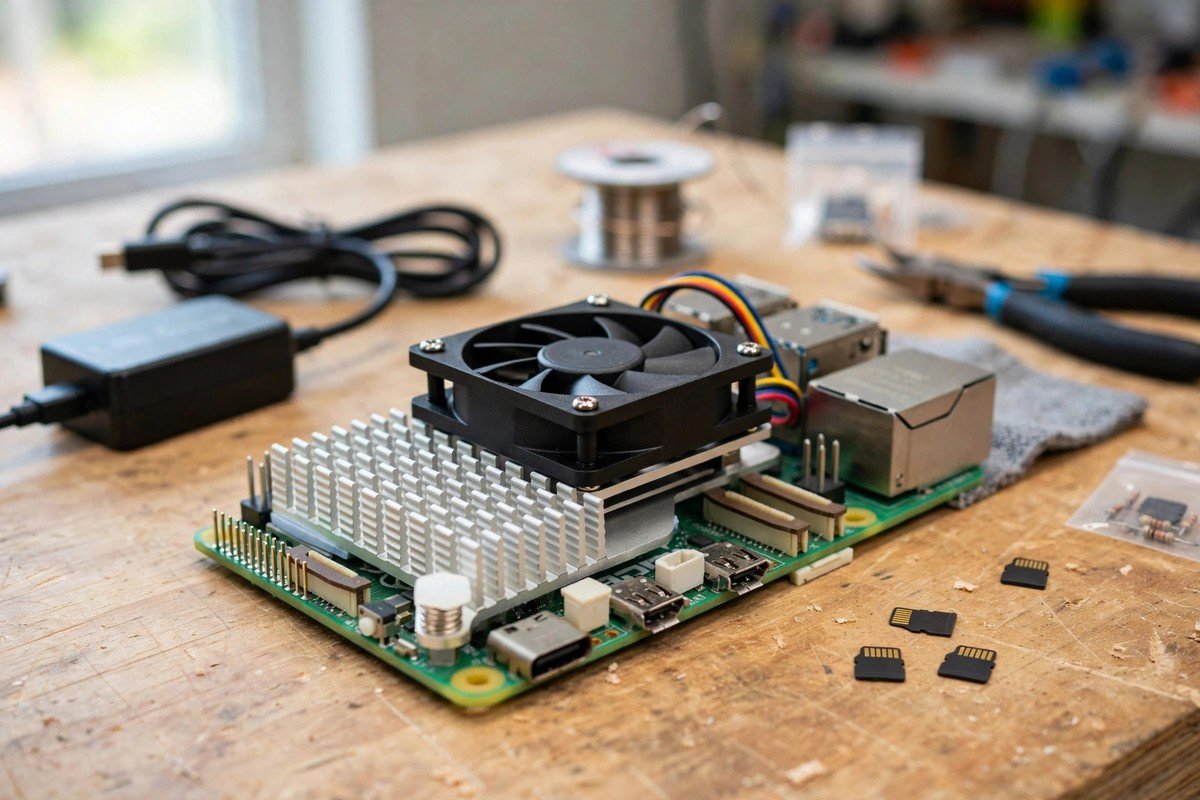
Second, the official 27W USB-C power supply. The Pi 5 needs 5V at 5A, and a weak phone charger causes random crashes under load. Third, active cooling. The Pi 5 throttles its processor at 80 degrees Celsius, and sustained model inference pushes it close to that limit, so fit the official Active Cooler or a case with a built-in fan. Fourth, storage. A 32GB microSD card is enough for your first model, but an NVMe SSD on a PCIe HAT loads models far faster and lasts longer under constant use. Model files are 2 to 5GB each, so the card fills up quickly. Fifth, a network connection and SSH access, since most people run the Pi headless without a monitor.
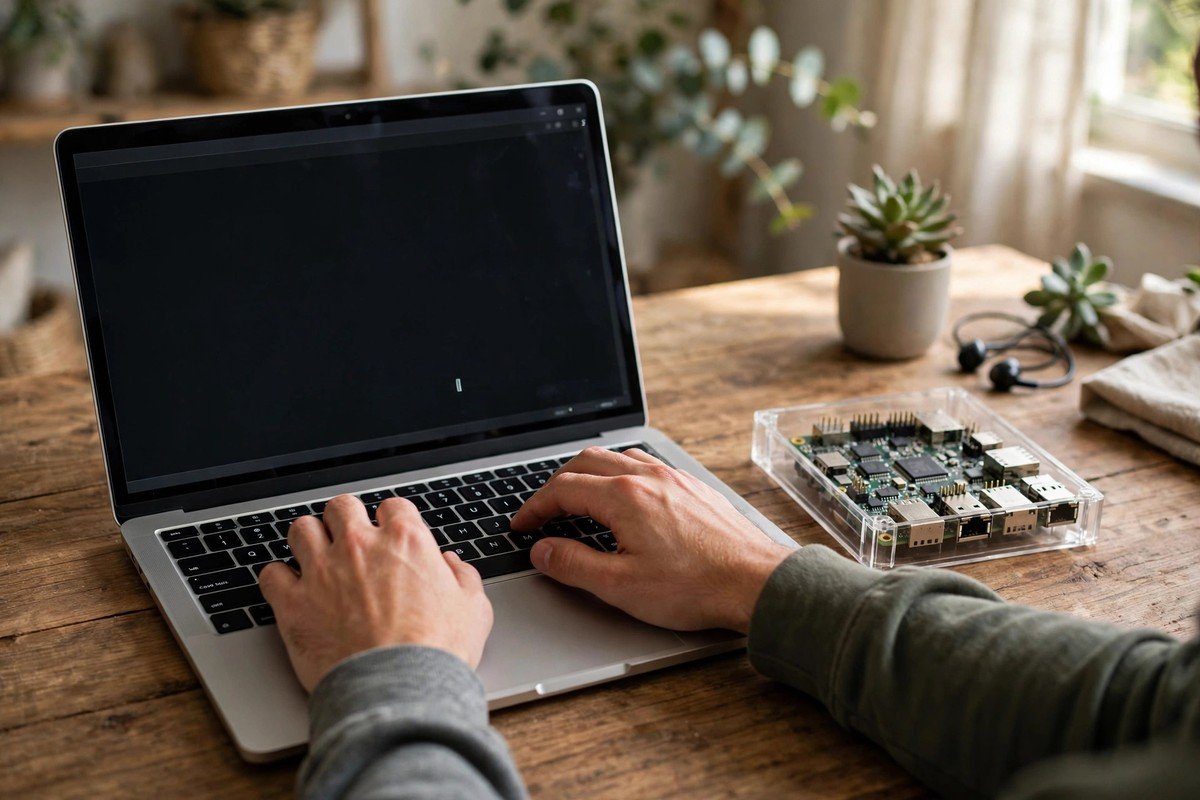
Ollama is the easiest way to run a chat model on a Raspberry Pi. It downloads models, manages them, and gives you a chat prompt in the terminal plus an API your own scripts can call. Install it with one command:
curl -fsSL https://ollama.com/install.sh | sh
The installer sets Ollama up as a system service that starts automatically. Then pull a small model and start chatting:
ollama run gemma3:1b
That downloads Google’s Gemma 3 with 1 billion parameters, about 0.8GB, and drops you into a chat prompt. Type a question, read the reply, and type /bye to leave. Your first model is running, and nothing you typed has left your home.
Pick your next model from the table below. Sizes are the download sizes from the Ollama library, and speeds are from tests on a Pi 5 with 8GB published in November 2026. Speeds vary between tests, so treat them as a guide, not a promise. For example, llama3.2:3b is reported at about 5 tokens per second in one careful test and at 12 to 15 in another, so expect single figures to low teens depending on the setup. Small language models like these are the whole point of a Pi: they trade raw ability for privacy, zero running cost, and full offline use.
| Model | Download size | Speed on Pi 5 8GB | Best for |
|---|---|---|---|
| gemma3:1b | About 0.8GB | 18 to 22 tokens per second | First model, fastest replies |
| llama3.2:1b | About 1.3GB | About 8 tokens per second | Simple questions on a 4GB Pi |
| deepseek-r1:1.5b | About 1.1GB | 7 to 9 tokens per second | Short reasoning tasks |
| llama3.2:3b | About 2.0GB | Roughly 5 to 15 tokens per second | Best all-rounder on 8GB |
| qwen2.5-coder:3b | About 2.0GB | About 5 tokens per second | Code help and explanations |
| gemma3:4b | About 3.4GB | 8 to 11 tokens per second | Best quality under 4B |
| mistral:7b | About 4.4GB | About 2 tokens per second | Only on 8GB, and very slow |
Start with gemma3:1b. It is the fastest model that still gives sensible answers, and it leaves plenty of RAM free. Move to llama3.2:3b once everything works: it is the best balance of speed and quality on an 8GB Pi. Avoid 7-billion-parameter models for interactive chat. They load and they answer, but at about 2 tokens per second a short reply takes a long time to appear.
Two practical details matter. Ollama unloads a model after five minutes without a request, so the next question waits while it reloads. Add --keepalive 24h to ollama run to keep it in memory. And Ollama’s API runs on port 11434 with no password. It only listens on your Pi by default, which is safe. If you open it to your home network with OLLAMA_HOST=0.0.0.0, keep it inside your home network and never forward that port to the internet.
If you want a ChatGPT-style page in your browser instead of a terminal, add Open WebUI with Docker. It talks to Ollama on port 11434 and serves its interface on port 8080. Get the terminal chat working first. If you are weighing this setup against a hosted model, our guide to running AI models locally vs the cloud sets out the cost and privacy trade-offs in full.
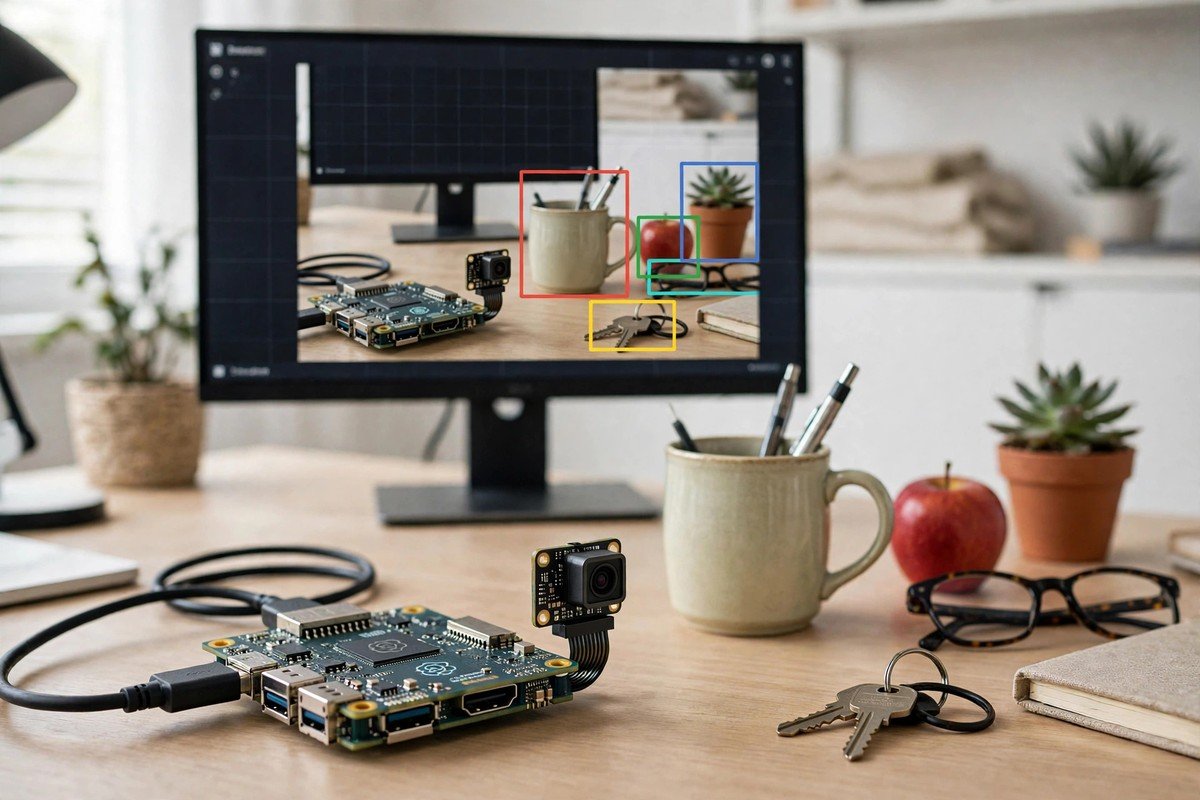
Ollama is for chat. For a camera that spots objects, a sensor that classifies sounds, or a photo sorter, use LiteRT, Google’s on-device inference runtime. It was called TensorFlow Lite, and the current package name is ai-edge-litert. Do not install the older tflite-runtime package: its last release was in 2023 and it will not build on current Raspberry Pi OS images.
The workflow has three steps. First, convert a model on your laptop, not on the Pi, because converting loads the full model and easily runs out of memory on a Pi. A standard example is MobileNetV2, a pretrained image classifier. On your laptop, load it, convert it with full integer quantization, and save the result as a .tflite file. Copy that file to the Pi. Second, install the small interpreter on the Pi inside a virtual environment:
python3 -m venv edge-env
source edge-env/bin/activate
pip install ai-edge-litert pillow numpy
Third, run inference with a short script. It loads the model, reads a photo, resizes it to 224 by 224 pixels, feeds it to the interpreter, and prints the predicted class. The one detail that catches beginners is the input type: a fully quantized model expects raw pixel values from 0 to 255, not the 0 to 1 floats a normal model takes. Check input_details["dtype"] before you feed the image. The wrong type either throws an error or, worse, runs without error and returns meaningless predictions.
For a live camera instead of a photo file, use picamera2, which ships with current Raspberry Pi OS. The original picamera library depends on the old camera stack that Bookworm removed, so it will not install. The same pattern extends to object detection, audio classification and pose estimation with only small changes to the model and the input code. If you are deciding how much hardware this kind of work needs, see how much GPU you need to run AI models locally.
There is a third route that suits a 4GB Pi better than Ollama does. LiteRT-LM is Google’s orchestration layer on top of LiteRT for running Gemma models, and it is far lighter on memory. Install it with pip, then run Google’s Gemma 4 E2B model from the LiteRT Hugging Face community:
pip install litert-cli
export HUGGING_FACE_HUB_TOKEN=your-token-here
litert lm run --from-huggingface-repo=litert-community/gemma-4-E2B-it-litert-lm gemma-4-E2B-it.litertlm
You need a free Hugging Face account and token because Gemma is a gated model. Google’s published figures for this setup on a Raspberry Pi 5 are 99 tokens per second for prefill and 9 tokens per second for decode, with a peak memory footprint of just 1432MB. That low memory use is the point: one independent test ran Gemma 4 E2B stably on a 4GB Pi at around 1.6GB of memory, where Ollama could not load the same model. For the full walkthrough, including the Reachy Mini robot demo that runs vision, speech and reasoning on one Pi, read Google’s LiteRT and Gemma guide for Raspberry Pi.
Probably not yet, and definitely not before you have run a model on the CPU. The Pi 5 has no built-in neural processor, but Raspberry Pi sells add-on boards that plug into its PCIe port. The AI HAT+ with the Hailo-8L chip delivers 13 TOPS of INT8 inference and lists at $70. The bigger AI HAT+ with the Hailo-8 chip delivers 26 TOPS and lists at $110. Both are built for vision: object detection, segmentation and pose estimation. They do not speed up Ollama chat models.
The newer AI HAT+ 2 is different. It carries a Hailo-10H chip rated at 40 TOPS in INT4 with 8GB of its own memory, and it launched at $130 in January 2026. It runs small language models through the hailo-ollama server, so it is the first HAT that helps with chat as well as vision. Its model choice is limited to the Hailo Gen-AI Model Zoo, not the full Ollama library, and it takes the Pi’s only PCIe port, which is the same port an NVMe HAT uses.
Do not buy a Google Coral USB Accelerator for a new project. Google archived the Coral GitHub organisation in 2026 and its libraries have not been updated since 2022, so it needs workarounds on current Linux kernels. It still works if you already own one, but it is not something to build a new setup around. Start on the CPU, find the job that is actually too slow, and only then buy the accelerator that matches that job.
Set your expectations by model size. A 1-billion-parameter model replies at 18 to 22 tokens per second, which feels responsive. A 3-billion-parameter model runs at roughly 5 to 15 tokens per second, like watching a fast typist. A 7-billion-parameter model crawls at about 2 tokens per second. A short answer takes a few seconds with a 1B model and tens of seconds with a 7B model. For comparison, cloud models answer several times faster, but they charge per use and your data leaves your home.
Heat is the other limit. During sustained inference a Pi 5 with the official Active Cooler stays below 70 degrees Celsius, while a Pi without a cooler climbs to 75 to 80 degrees and throttles at 80, which can cut token speed to a third of its normal rate. Check the temperature with vcgencmd measure_temp while a model is running. Power use is small either way: the Pi 5 draws roughly 4 to 12 watts, so it costs very little to leave on all day. It serves one user at a time, so do not plan a shared service on it. It is a personal assistant, a home automation brain and an offline voice helper, not a server.
Most first-time failures come from five causes. A 32-bit operating system is the most common: if uname -m prints armv7l, reflash with the 64-bit image, because current packages ship prebuilt wheels for 64-bit only. An old tutorial telling you to install tflite-runtime is the second: use ai-edge-litert instead, since the old package has had no release since 2023. Predictions that are consistently wrong, rather than slightly off, usually mean the input type is wrong: a quantized model fed float values in the 0 to 1 range returns garbage without crashing, so always check the expected dtype first. Running out of memory means the model is too big: drop to a 1B model or move to the 8GB Pi. Slow replies that get slower over minutes usually mean throttling: fit active cooling and check the temperature. And if Ollama works on the Pi but not from your laptop, the API is still bound to localhost: set OLLAMA_HOST=0.0.0.0 with a systemd override, restart the service, and keep it on your home network only.
Learning how to run AI models on a Raspberry Pi comes down to three choices: the right board, the right route, and the right model size. Buy a Pi 5 with 8GB, install the 64-bit Raspberry Pi OS with the official power supply and active cooling, and start with Ollama and gemma3:1b. That gives you a private chat model in under half an hour. Add LiteRT when you want vision or classification, try LiteRT-LM with Gemma 4 E2B if you only have 4GB of RAM, and buy an AI HAT+ only when you can name the job that is too slow on the CPU. Keep your expectations honest, keep your prices current, and you will have a small AI computer on your desk that answers to nobody but you.
No, not at that level. A Raspberry Pi runs small open models with 1 to 4 billion parameters, such as Gemma 3 1B and Llama 3.2 3B. They answer questions, summarise text, help with code and run home automations, but they are far less capable than ChatGPT or Claude on hard reasoning, long documents and creative writing. Use the Pi for private, offline, everyday tasks and the cloud for work that needs frontier quality.
If you are learning how to run AI models on a Raspberry Pi, the Raspberry Pi 5 with 8GB of RAM is the best choice. It runs 3-billion-parameter chat models at a usable speed, handles vision models, and has a PCIe port for NVMe storage. The 4GB Pi 5 is a workable budget option for 1-billion-parameter models and vision work. Avoid older boards and 4GB boards if chat models are your main goal, and check the current list price before buying, since the 8GB board rose from $80 at launch to $175 in the October 2026 official brief.
Yes, after the first download. Ollama needs the internet once to download a model, and after that it runs fully offline with no data leaving your network. The same applies to LiteRT models once the model file is on the Pi. You only need the internet again to download a new model or an update.
For chat models, 4GB of RAM is enough for models up to about 1 billion parameters, such as gemma3:1b at 0.8GB. For 3-billion-parameter models such as llama3.2:3b at about 2.0GB, you need the 8GB Pi, because the operating system takes roughly 1 to 1.5GB before the model loads. LiteRT-LM with Gemma 4 E2B is the exception: it peaks at about 1432MB, so it can run on a 4GB Pi.
No. Chat models through Ollama and vision models through LiteRT both run on the Pi 5 CPU with no extra hardware. An AI HAT+ accelerator helps with vision workloads such as object detection, and the newer AI HAT+ 2 also runs small language models, but neither is needed for your first project. Start on the CPU and buy an accelerator only when a specific job is too slow.